There’s no Google Sheets app for Mac. Here’s how to make one.
Google doesn’t make a Google Sheets app for the Mac. You can still give Google Sheets an app of its own: a window with only Google Sheets in it, its own Dock icon, and a hotkey. It stays signed in, and it takes about a minute.
With Tilemode: press ⌃⌥N, enter https://docs.google.com/spreadsheets/, name it Sheets, pick a hotkey such as ⌃⌥⌘S, and click Add app.
Built in: open Google Sheets in Safari and choose File › Add to Dock (macOS Sonoma 14 or later).
Is there a Google Sheets app for Mac?
No. Google makes Google Sheets apps for iPhone and iPad, but not for the Mac. On a Mac, Google Sheets is a website.
Giving Sheets its own app puts your spreadsheets in a window of their own, with a Dock icon and a hotkey, instead of somewhere among your browser tabs.
How to make a Google Sheets app with Tilemode
- Open Tilemode (it needs macOS 14 or later) and press ⌃⌥N, or choose New web app… from the Tilemode menu.
- Address: type
https://docs.google.com/spreadsheets/ - Name: type Sheets. This is the name you’ll see in the Dock.
- Hotkey: pick keys such as ⌃⌥⌘S (type
ctrl+opt+cmd+s) and, if you like, a Tile such asleft-two-thirdsso it always opens in that part of the screen. - Click Add app, then sign in to Google Sheets once inside the new app.
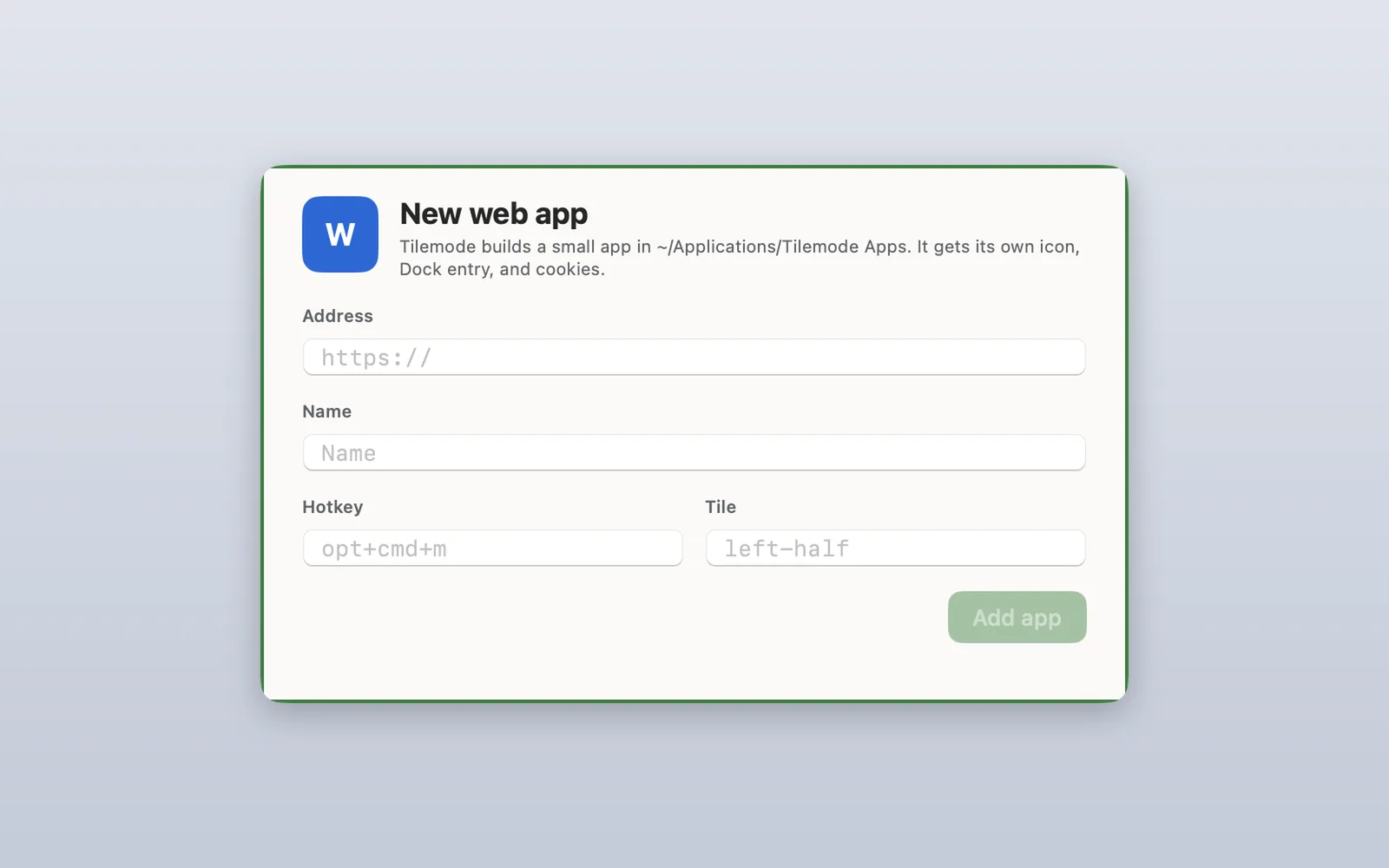
Tilemode builds a small app for it in ~/Applications/Tilemode Apps, with a plain letter icon (no logo), its own Dock spot and its own storage. Prefer the command line? tilemode app add https://docs.google.com/spreadsheets/ --name "Sheets" --hotkey ctrl+opt+cmd+s --tile left-two-thirds does the same thing.
What works in your Google Sheets app
It’s Google Sheets’s own website, so it looks and works the way it does in a browser. On top of that:
- Its own window and Dock icon. ⌘⇥ finds it like any other app.
- It stays signed in. Each app keeps its own sign-in and storage, separate from your browser and from your other web apps.
- One key to bring it up. The hotkey opens the app, or brings it to the front if it’s already open.
- Notifications. When Google Sheets shows a notification while the app is open, it appears as a normal Mac notification.
- Downloads go to your Downloads folder, and links to other sites open in your usual browser.
- Mac keys: ⌘R reloads, ⌘[ and ⌘] go back and forward, ⌘L goes to an address, and ⌘⇧O opens the page in your browser.
Good for
- Editing, formulas, charts, filters and pivot tables
- Sharing and working with other people at the same time
- Downloading a sheet as an Excel, CSV or PDF file (it goes to your Downloads folder)
What it can’t do yet
- Importing a file from your Mac (File › Import › Upload) or inserting an image from your Mac: Tilemode web apps can’t open the file picker yet.
Tips for Google Sheets as an app
- Wide sheets, wide tile: use left-two-thirds, or press ⌃⌥F to give a big sheet the whole screen.
- Copy the link fast: press ⌘⇧C to copy the address of the sheet you’re in.
The built-in way: Safari’s Add to Dock
On macOS Sonoma 14 or later, Safari can make a web app for free:
- Open Google Sheets in Safari:
https://docs.google.com/spreadsheets/ - Choose File › Add to Dock (or click the Share button and choose Add to Dock).
- Type a name and click Add.
The web app is saved to the Applications folder in your home folder and appears in the Dock and Spotlight. Safari usually carries your sign-in over when you make it. After that it keeps its own cookies and history, apart from Safari. It has a simple toolbar with back and forward, you can give it any name and icon, and for sites that send notifications it can show them with a count on its Dock icon. Because it’s Safari underneath, it also handles things Tilemode apps can’t yet, like choosing files to upload.
More on this, step by step: how to turn a website into a Mac app.
Why make it with Tilemode
Safari’s web app is a good start. Tilemode, our Mac app, adds the parts that make it fast to use every day:
- A hotkey for every app. Press it and Google Sheets comes up, whatever you’re doing. Press it again to go through its windows.
- It opens where you want it. Give the app a tile and it lands there every time, next to your other work.
- Tiling for everything else. ⌃⌥1 puts your windows side by side, and ⌃⌥F fills the screen.
- As many as you like. Each app has its own sign-in, so two accounts can be two apps with two keys.
Questions
Will I stay signed in?
Yes. The app keeps its sign-in and storage between launches, separate from your browser and from your other web apps.
Can I import a CSV or Excel file?
Not from inside a Tilemode app yet, because it can’t open the file picker. Press Command-Shift-O to open Sheets in your browser for the import, then come back to the app.
How do I remove the app?
In Tilemode, run tilemode app remove with the app’s name, or delete it from ~/Applications/Tilemode Apps. For a Safari web app, drag it from the Applications folder in your home folder to the Trash.