How to turn a website into an app on a Mac
A website you use all day can be its own Mac app: its own window, its own Dock icon, and its own sign-in. macOS has a built-in way to do it in Safari, and it takes less than a minute.
In Safari: open the website and choose File › Add to Dock. Type a name and click Add. The app appears in your Dock (macOS Sonoma 14 or later).
With a hotkey: in Tilemode, press ⌃⌥N, enter the address, a name and a hotkey.
Add a website to the Dock with Safari
Safari has done this since macOS Sonoma 14. It takes three steps:
- Open the website in Safari, on the page you want the app to start on.
- Choose File › Add to Dock from the menu bar. Or click the Share button in the toolbar and choose Add to Dock.
- Type a name and click Add.
The new web app goes into the Applications folder in your home folder, and its icon appears in the Dock. You can also open it from Spotlight. If you were signed in to the site in Safari, you’re usually signed in to the web app too.
How a web app is different from a Safari tab
- It’s separate from Safari. It shares no history, cookies or website data with Safari. What you do in the web app stays in the web app.
- A simpler window. The toolbar has back, forward and Share. To get bookmarks or tabs, click Share and choose Open in Safari.
- Any name and icon you like.
- Notifications. If the site sends notifications and you allow them in the web app, they appear like any app’s, and the Dock icon can show a count of unread ones.
- Opens at login if you add it to your login items, like any other app.
Change or delete a web app
Open the web app, click its name in the menu bar, and choose Settings. You can change the name, the start address (or use the page you’re on), and the icon, and choose whether to show the navigation buttons and whether the title bar takes on the site’s color. The Privacy tab clears the site’s cookies and data.
To delete a web app, open your home folder (in the Finder, choose Go › Home), open Applications, and drag the web app to the Trash. Dragging its icon out of the Dock only takes it off the Dock.
Don’t see Add to Dock? It needs macOS Sonoma 14 or later. Check your version in Apple menu › About This Mac.
Sites people turn into Mac apps
Plenty of sites you use every day have no Mac app at all. These walkthroughs show how to give each one its own window, what works, and what doesn’t:
- Gmail app for Mac: Mail in its own window that stays signed in, with one key to bring it up.
- Google Calendar app for Mac: Your week one key away, sitting in the right third of the screen.
- YouTube app for Mac: Videos in their own window, out of your browser tabs.
- YouTube Music app for Mac: Music in its own app, so closing tabs never stops it.
- Google Docs app for Mac: Your documents in their own window instead of a browser tab.
- Google Messages app for Mac: Texts from your Android phone in their own Mac window.
- Google Sheets app for Mac: Spreadsheets in their own window, one key away.
- Google Keep app for Mac: A quick note is one key away.
- Instagram app for Mac: Your feed and messages in their own window. Posting isn’t supported.
- Google Photos app for Mac: Browse, search and share your library. Uploading isn’t supported.
- X app for Mac: Your timeline in its own window, with the unread count on the Dock icon.
A faster way: website apps with a hotkey
Safari’s web apps are free and work well. Tilemode, our Mac app, makes website apps too, built for getting to them fast:
- A hotkey for each one. Press it and the site’s app opens, or comes to the front if it’s open.
- It opens in its place. Give it a tile, such as the right third of the screen, and it lands there every time.
- Its own sign-in. Each app keeps its own cookies and storage, so two accounts can be two apps.
- Quick to make. Press ⌃⌥N, enter the address and a name, pick a hotkey, done.
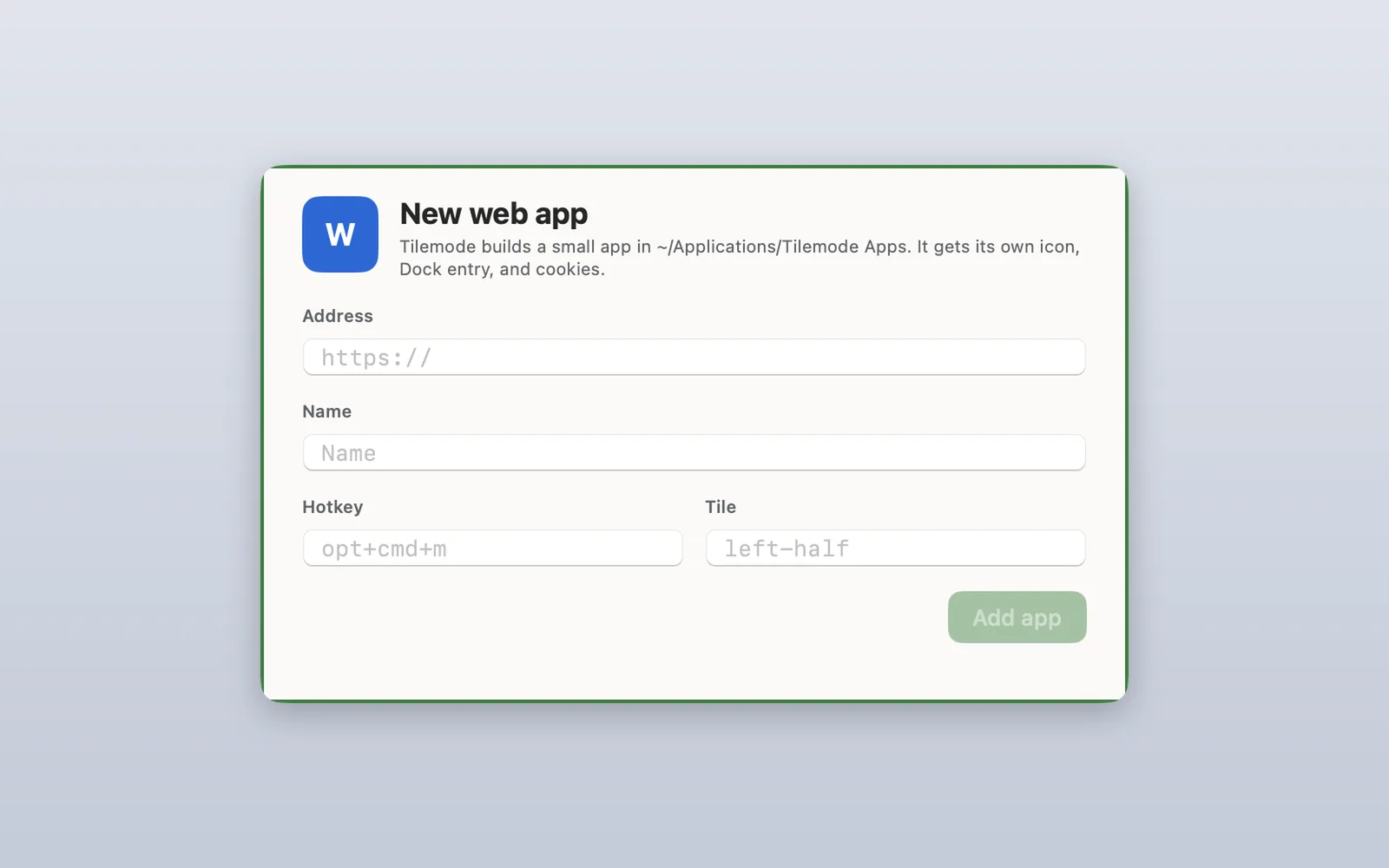
Tilemode apps can’t choose files to upload or use the camera or microphone yet, so for those, Safari’s web app is the better fit. Tilemode needs macOS 14 or later.
Questions
How do I add a website to the Dock on a Mac?
Open the site in Safari and choose File › Add to Dock, or click the Share button and choose Add to Dock. Type a name and click Add. It needs macOS Sonoma 14 or later.
How do I make a website an app on a Mac?
Use Safari’s Add to Dock to save the site as a web app. It gets its own window, Dock icon and cookies. Tilemode can also make a website app, with its own hotkey and a spot on the screen it opens in.
Where are Safari web apps saved?
In the Applications folder inside your home folder. You can open them from the Dock or Spotlight.
Do web apps keep me signed in?
Yes. A web app keeps its own cookies between launches. They’re separate from Safari, so signing out in Safari doesn’t sign you out of the web app.
Can a web app send notifications?
Yes, for sites that send them. Allow notifications when the web app asks. The Dock icon can then show a count of unread notifications.
How do I remove a website from the Dock?
Drag its icon out of the Dock to take it off the Dock. To delete the web app, drag it from the Applications folder in your home folder to the Trash.
Why don’t I see Add to Dock in Safari?
Add to Dock needs macOS Sonoma 14 or later. On an older version of macOS, the menu item isn’t there.
Can I change a web app’s icon?
Yes. Open the web app, click its name in the menu bar, choose Settings, then click the icon and pick an image.