How to split screen on a Mac
There are two built-in ways to put windows side by side on a Mac: Split View, which goes full screen, and window tiling, which keeps your desktop. Here’s how to use both, the keyboard shortcuts, and what to do when it won’t work.
Quickest way: hold the pointer over the green button in the top-left corner of a window, choose Full Screen › Left of Screen, then click the window you want on the right. That’s Split View.
Keep your menu bar and Dock: press Fn⌃⇧← (Fn-Control-Shift-Left Arrow). The window you’re in snaps to the left half and the second window fills the right half. Needs macOS 15 or later.
Split screen with Split View
Split View puts two apps side by side and makes them fill the whole screen, like full screen mode for two. It’s built into every Mac, and many apps support it.
- Hold the pointer over the green button in the top-left corner of the first window.
- Choose Full Screen, then Left of Screen or Right of Screen.
- Click the second window on the other side of the screen.
The two windows now share the screen in a new desktop space. The menu bar and Dock hide; move the pointer to the top or bottom of the screen to bring them back.
While you’re in Split View
- Make one side bigger: drag the bar in the middle left or right. Double-click it to go back to equal halves.
- Change sides: move the pointer to the top of a window so its title shows, then drag it to the other side.
- Swap in a different window: click the window, hold the pointer over the green button, choose Replace Tiled Window, then click the one you want instead.
- Add a window to an app that’s already full screen: press ⌃↑ (or swipe up with three or four fingers) to open Mission Control, then drag a window onto the full screen app at the top.
How to get out of Split View
Click one of the windows, hold the pointer over the green button and choose Move Window to Desktop. That window goes back to your normal desktop. The other one stays full screen in its own space: open it from Mission Control, hold the pointer over its green button and choose Exit Full Screen.
Snap windows side by side without full screen
Since macOS Sequoia (macOS 15), you can also tile, or snap, windows into halves and corners right on your desktop. Unlike Split View, nothing goes full screen: your menu bar, Dock and other windows stay where they are.
- Drag to the edge: drag a window by its title bar to the left or right edge of the screen. When a highlighted outline appears, let go and the window snaps into that half. Drag to a corner for a quarter, or to the menu bar to fill the screen.
- Hold Option while you drag: the outline shows up sooner, so you don’t have to go all the way to the edge.
- Use the green button: hold the pointer over it and pick a layout under Move & Resize for this window, or under Fill & Arrange to place several windows at once. Press Option to see more layouts.
- Use the menu bar: choose Window › Move & Resize and pick a half, a quarter or an arrangement.
To change how this works, open System Settings › Desktop & Dock and scroll to Windows:
- Drag windows to left or right edge of screen to tile: turn it off if windows snap when you don’t want them to.
- Drag windows to menu bar to fill screen
- Hold ⌥ key while dragging windows to tile
- Tiled windows have margins: turn it off to remove the small gap around tiled windows.
Mac split screen keyboard shortcuts
These work on macOS 15 and later. Hold the keys on the left together. Fn is the key marked fn, or with a globe on newer keyboards.
| Keys | What it does |
|---|---|
| Fn⌃← | Move the window to the left half of the screen |
| Fn⌃→ | Move the window to the right half |
| Fn⌃↑ | Move the window to the top half |
| Fn⌃↓ | Move the window to the bottom half |
| Fn⌃⇧← | This window on the left, the second window on the right |
| Fn⌃⇧→ | This window on the right, the second window on the left |
| Fn⌃⇧↑ | This window on top, the second window below (↓ for the other way round) |
| Fn⌃⌥⇧← | This window on the left half, the next two in the right-hand corners (→ ↑ ↓ for the other sides) |
| Fn⌃F | Fill the screen, keeping the menu bar and Dock |
| Fn⌃C | Center the window |
| Fn⌃R | Put the window back to the size it was before |
| ⌃⌘F | Turn full screen on or off |
| ⌃↑ | Open Mission Control |
The four corners don’t have shortcuts; use the green button or drag. Not sure what a symbol means? See every Mac keyboard symbol.
Split the screen into three or four windows
Split View only holds two windows. For more, use tiling:
- Four windows: drag a window into each corner, or hold the pointer over the green button and choose the four-quarters layout under Fill & Arrange (press Option if you don’t see it).
- Three windows: press Fn⌃⌥⇧←. The window you’re in takes the left half and the next two share the right half, one on top of the other.
What about Stage Manager?
Stage Manager isn’t split screen. It keeps the window you’re using in the middle of the screen and lines up your recent apps along the left. To see two apps at once, drag an app from the left into the middle to group them, then move and resize the windows yourself. Turn it on or off from Control Center in the menu bar, or in System Settings › Desktop & Dock.
Split screen with one key press
The built-in ways work, but they take a few clicks or a four-key chord, and Split View hides your menu bar and Dock. Tilemode, our Mac app, splits the screen with one shortcut and never goes full screen:
- ⌃⌥1 Two windows side by side. With more open, the first stays on the left and the rest stack on the right.
- ⌃⌥2 Thirds, ⌃⌥3 four quarters, ⌃⌥4 one big window with the rest stacked beside it.
- ⌃⌥⇧← / ⌃⌥⇧→ Move the window you’re in to the other side.
- ⌃⌥F Fill the screen, with the menu bar and Dock still there.
- ⌃⌥[ / ⌃⌥] Send a window to your other display.
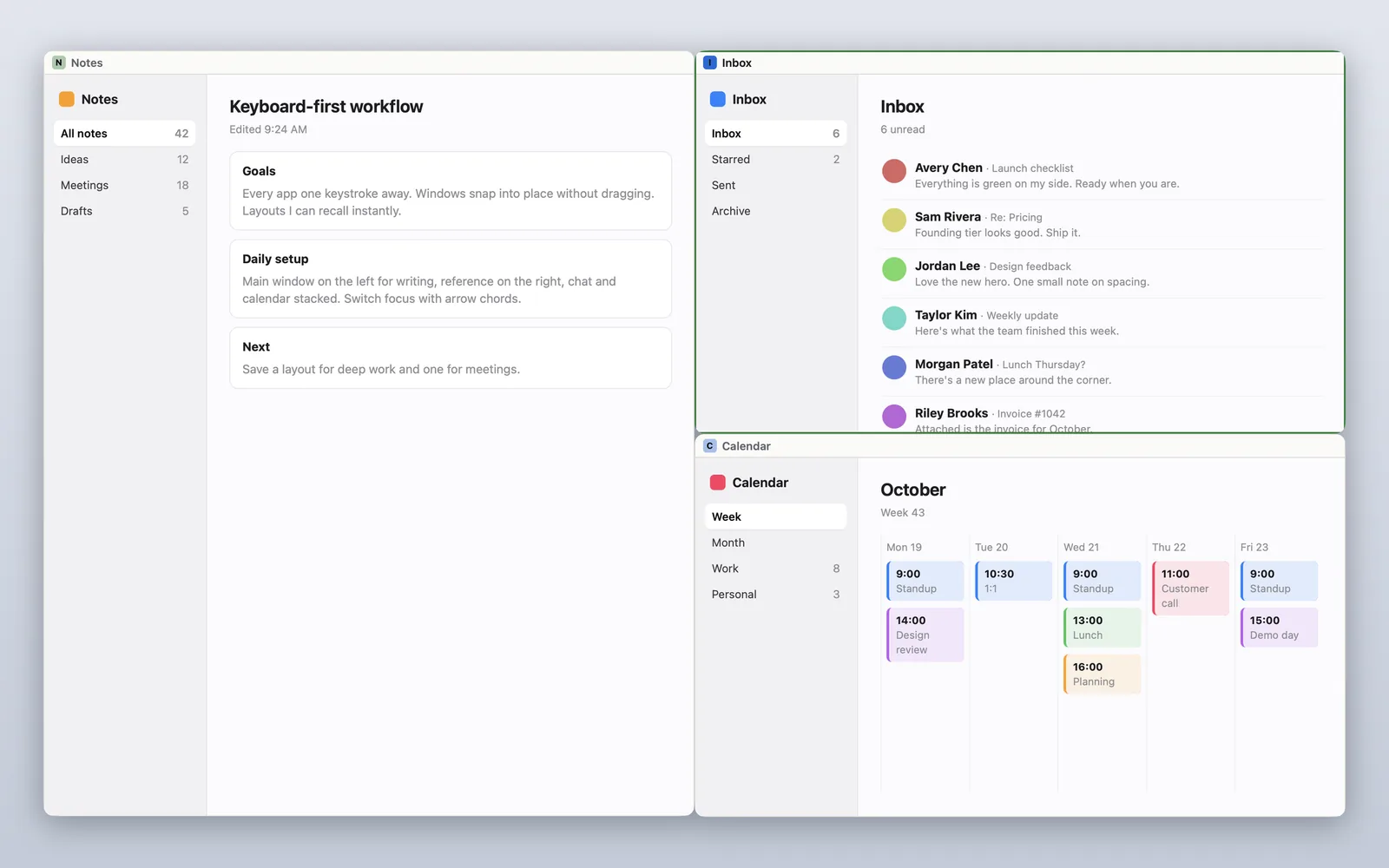
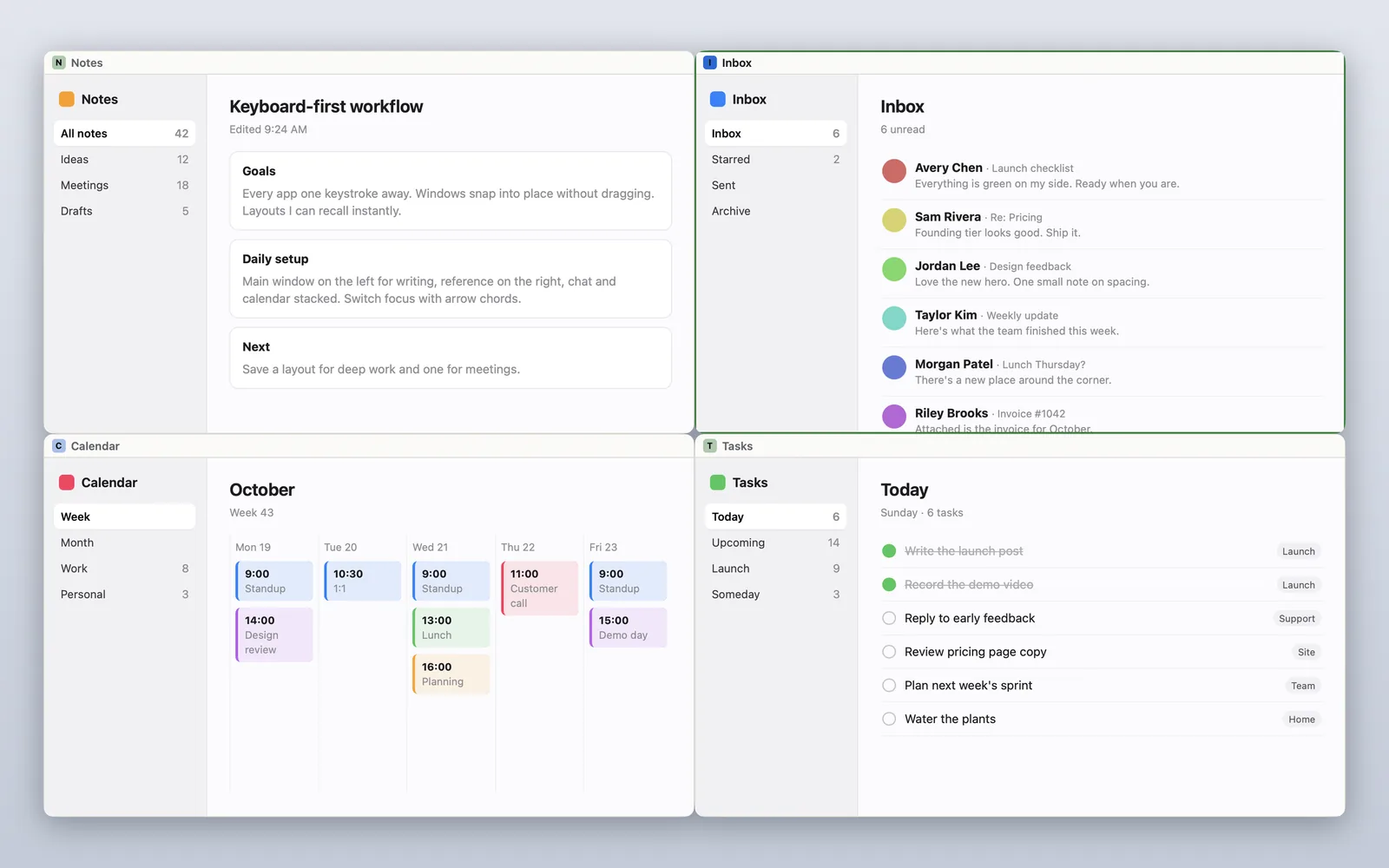
It works on the windows on the screen you’re using, any time, with no mode to turn on. You can also have an app open straight into its half every time. Tilemode needs macOS 14 or later.
Split screen not working?
- Full Screen options are dimmed or missing: that app or window doesn’t support full screen or resizing. Try tiling instead, or another window.
- Dragging to the edge does nothing: turn on “Drag windows to left or right edge of screen to tile” in System Settings › Desktop & Dock. Tiling needs macOS 15 or later; check yours under Apple menu › About This Mac.
- The shortcuts do nothing: make sure you’re holding Fn too, and check Window › Move & Resize to see the shortcuts your Mac lists.
- Split View won’t work on your second display: turn on “Displays have separate Spaces” in System Settings › Desktop & Dock.
- Dragging a window up opens Mission Control: that happens when you drag all the way through the top edge. Turn off “Drag windows to top of screen to enter Mission Control” in Desktop & Dock if it gets in the way.
Questions
How do I split screen on a Mac with the keyboard?
Press Fn-Control-Shift-Left Arrow. The window you’re in moves to the left half and the second window fills the right half. Or move one window at a time with Fn-Control-Left Arrow and Fn-Control-Right Arrow. These shortcuts need macOS 15 or later.
How do I get out of split screen on a Mac?
In Split View, click a window, hold the pointer over the green button and choose Move Window to Desktop. The other window stays full screen until you choose Exit Full Screen from its green button. For a tiled window, press Fn-Control-R to put it back to its earlier size, or just drag it somewhere else.
How do I split screen two windows of the same app?
Open a second window, usually with Command-N, then put one on the left with Fn-Control-Left Arrow and the other on the right with Fn-Control-Right Arrow. This works for two browser windows, two documents, or two of anything.
How do I split screen in Safari?
Open a second Safari window with Command-N, or drag a tab out of the window to make it its own window. Then tile one to the left and one to the right, or choose Full Screen › Left of Screen from the green button to use Split View.
Can I split my Mac screen into three or four windows?
Yes, with tiling. Drag a window into each corner, choose the four-quarters layout from the green button, or press Fn-Control-Option-Shift-Left Arrow for one window on the left and two stacked on the right. Split View only holds two windows.
How do I switch sides or resize split windows?
In Split View, drag a window by its title to the other side, and drag the bar in the middle to resize. With tiled windows, Fn-Control-Shift-Right Arrow puts the window you’re in on the right and the second window on the left. You can drag any window’s edge to resize it.
Does split screen work on an external monitor?
Yes. Tiling works on any display. For Split View on a second display, turn on “Displays have separate Spaces” in System Settings › Desktop & Dock.
What’s the difference between Split View and tiling?
Split View makes two windows full screen in their own desktop space and hides the menu bar and Dock. Tiling, in macOS 15 and later, arranges windows on your normal desktop, so the menu bar, Dock and other windows stay put. Tiling can also fill corners for three or four windows.