How to full screen on a Mac
A Mac has two ways to make a window big: full screen mode, which hides the menu bar and Dock, and Fill, which just makes the window as large as it can go. Here’s how to use both, every shortcut, and how to get out again.
Full screen: click the green button in the top-left corner of the window, or press ⌃⌘F (Control-Command-F). Do the same again to exit.
Bigger window, keep the menu bar: hold the pointer over the green button and choose Fill, or press Fn⌃F (Fn-Control-F) on macOS 15 or later.
Full screen mode
Full screen mode gives one app the whole display. The menu bar and Dock hide, and the app moves to its own space.
- Click the green button in the top-left corner of the window. Or hold the pointer over it and choose Full Screen › Entire Screen.
- Or press ⌃⌘F (Control-Command-F). It works in apps that support full screen.
- See the menu bar: move the pointer to the top of the screen. See the Dock: move it to the bottom (or wherever your Dock lives).
- Move between full screen apps: swipe left or right with three or four fingers on the trackpad.
How to exit full screen on a Mac
Press ⌃⌘F again, or move the pointer to the top-left corner and click the green button. You can also hold the pointer over the green button and choose Exit Full Screen.
Fill the screen without going full screen
Often you just want the window bigger, not a new space with the menu bar gone. That’s called filling (or maximizing) the window. Everything else stays where it is.
- Green button: hold the pointer over it and choose Fill under Fill & Arrange.
- Keyboard: press Fn⌃F (Fn-Control-F). Press Fn⌃R to put it back.
- Menu bar: choose Window › Move & Resize › Fill.
- Drag to the top: drag the window by its title bar into the menu bar, if “Drag windows to menu bar to fill screen” is on in System Settings › Desktop & Dock.
- Double-click the title bar: by default this may zoom the window instead. To make it fill, open System Settings › Desktop & Dock and set Window title bar double-click action to Fill.
- Just one side: double-click any edge of a window to stretch that side to the edge of the screen.
Fill & Arrange and the Fn-Control shortcuts came with window tiling in macOS 15. On older versions, use the title bar double-click or drag the window’s corner.
Full screen and window shortcuts
Hold the keys together. Fn is the key marked fn, or with a globe on newer keyboards.
| Keys | What it does |
|---|---|
| ⌃⌘F | Turn full screen on or off, in apps that support it |
| Fn⌃F | Fill the screen without full screen (menu bar and Dock stay) |
| Fn⌃R | Put the window back to the size it was before |
| Fn⌃C | Center the window |
| ⌘M | Minimize the window to the Dock |
| ⌥⌘M | Minimize every window of the app |
| ⌘H | Hide the app |
| ⌥⌘H | Hide every other app |
| ⌃↑ | Open Mission Control |
| FnH | Show the desktop |
| ⌘⇥ | Switch to another app |
On some keyboards you can also show the desktop with ⌘ plus the Mission Control key, or Fn-F11. More in the Mac keyboard shortcuts cheat sheet.
Minimize, hide or clear the screen
- Minimize: click the yellow button or press ⌘M. The window shrinks into the Dock; click it there to bring it back.
- Hide: press ⌘H to hide the whole app. Switch back to it with ⌘⇥ and it reappears. See how to switch windows on a Mac.
- See everything: press ⌃↑ or swipe up with three fingers to open Mission Control, then click the window you want.
- Show the desktop: press FnH. Do it again to bring the windows back.
Fill the screen with one key press
Fn⌃F is three keys and needs the Fn key, which isn’t always where your fingers are. Tilemode, our Mac app, puts every window size on a ⌃⌥ shortcut and never switches to full screen mode:
- ⌃⌥F Fill the screen, with the menu bar and Dock still there.
- ⌃⌥1 Two windows side by side, ⌃⌥2 thirds, ⌃⌥3 quarters.
- ⌃⌥4 One big window with the rest stacked beside it.
- ⌃⌥[ / ⌃⌥] Send the window to your other display.
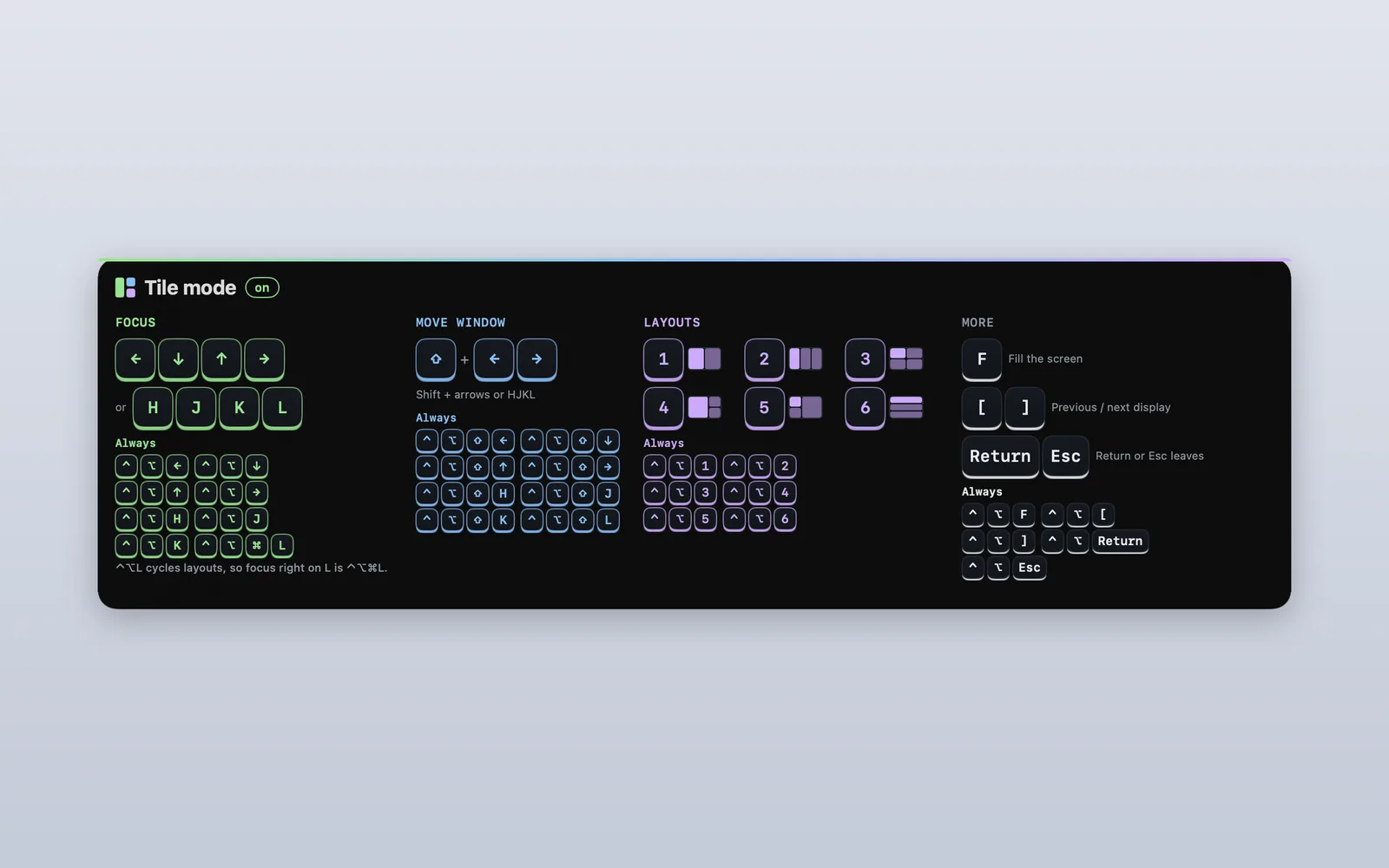
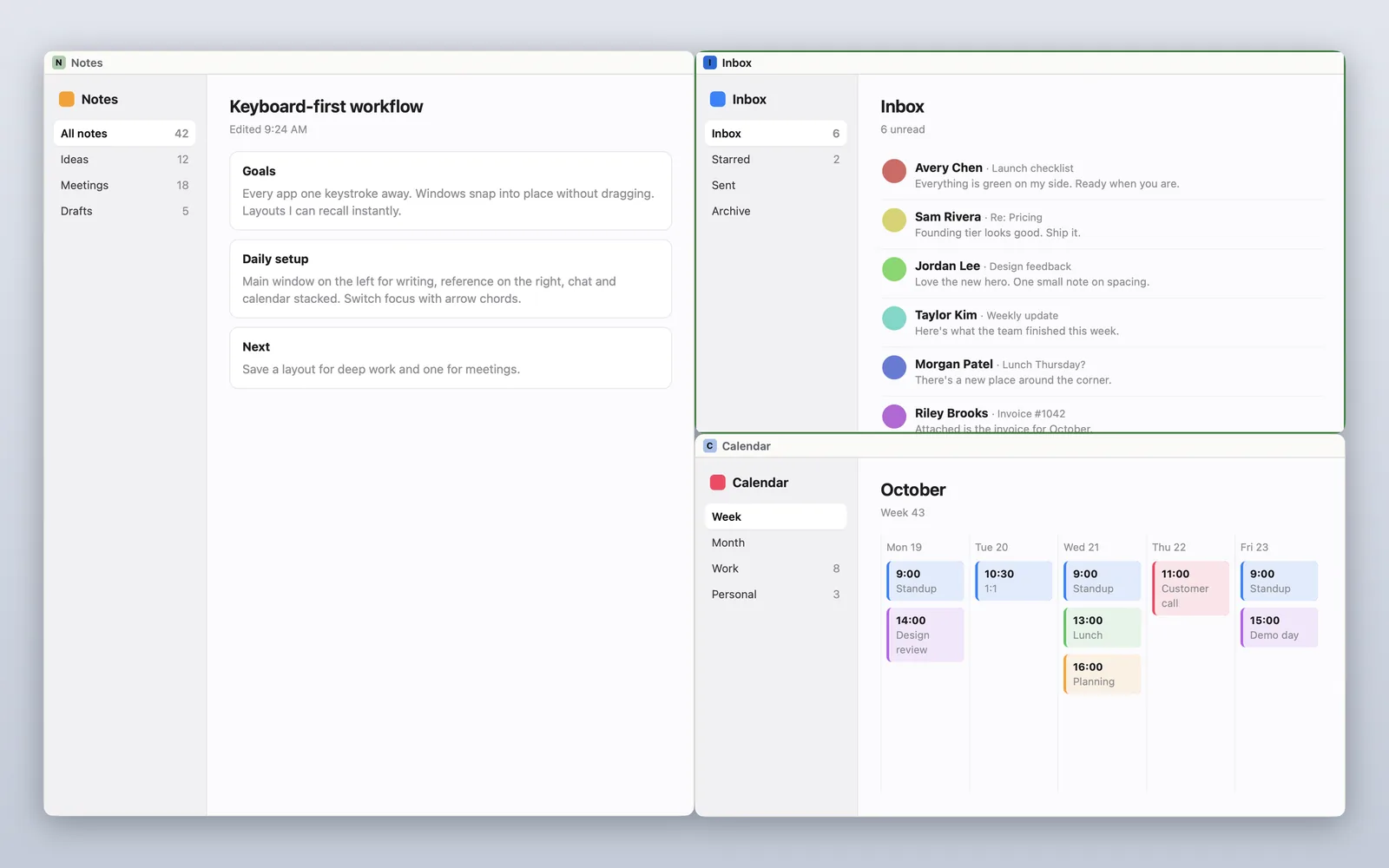
Forget a key? ⌃⌥Space shows them all. Tilemode works on the screen you’re using and needs macOS 14 or later.
Full screen not working?
- The green button doesn’t offer Full Screen: that app or window doesn’t support it. Fill the window instead.
- Control-Command-F does nothing: the app doesn’t support the shortcut. Use the green button or Window menu.
- Fn-Control-F does nothing: check that you’re holding Fn, and look under Window › Move & Resize for the shortcuts your Mac lists. These need macOS 15 or later.
- The menu bar is gone: you’re in full screen. Move the pointer to the top of the screen, or exit full screen.
- A video won’t go full screen: use the player’s own full screen button, usually at the bottom right of the video.
Questions
What is the full screen shortcut on a Mac?
Control-Command-F turns full screen on and off in apps that support it. To make a window bigger without full screen, press Fn-Control-F to fill the screen.
How do I exit full screen on a Mac?
Press Control-Command-F again, or move the pointer to the top-left corner of the screen and click the green button. You can also choose Exit Full Screen from the green button’s menu.
How do I maximize a window on a Mac without full screen?
Hold the pointer over the green button and choose Fill, press Fn-Control-F, or choose Window › Move & Resize › Fill. The menu bar and Dock stay visible.
How do I make double-clicking the title bar fill the screen?
Open System Settings › Desktop & Dock and set Window title bar double-click action to Fill. Other choices are Zoom, Minimize and No Action.
How do I minimize a window on a Mac?
Click the yellow button or press Command-M. Press Option-Command-M to minimize every window of that app. Click the window in the Dock to bring it back.
What is the show desktop shortcut on a Mac?
Press Fn-H. On keyboards with a Mission Control key, Command plus that key also works. Press it again to bring your windows back.
Why are the menu bar and Dock hidden?
The app is in full screen mode. Move the pointer to the top of the screen for the menu bar or to the Dock’s edge for the Dock, or press Control-Command-F to leave full screen.
How do I switch between full screen apps?
Swipe left or right with three or four fingers on the trackpad, press Command-Tab to pick an app, or press Control-Up Arrow to open Mission Control and click the one you want.